
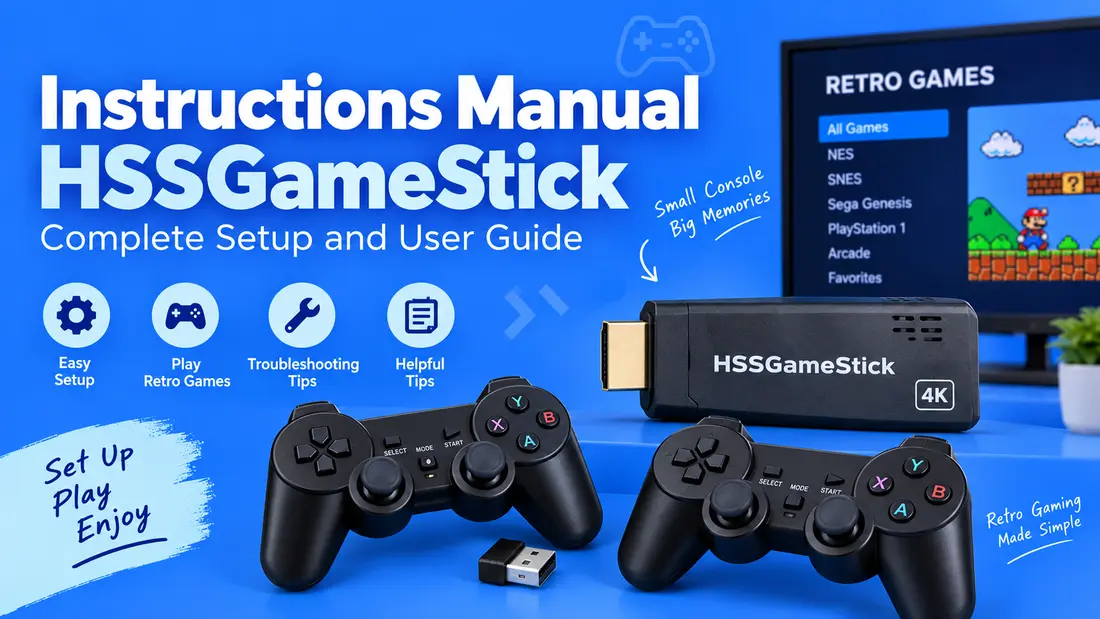
Looking for an instructions manual hssgamestick guide that actually explains what to do from the moment you open the box? You’re in the right place. Setting up an HSSGameStick is usually pretty simple, but the first few minutes can be confusing if you are not sure which cable goes where or why the controllers keep flashing.
The HSSGameStick is a small retro gaming console that connects to your TV through HDMI. Most versions come with wireless controllers, a USB receiver, a TF or microSD card, and a collection of preloaded games.
One thing to keep in mind is that HSSGameStick versions are not always identical. Menu layouts, controller buttons, game systems, shortcuts, and storage support can change from one model or firmware version to another.
This guide walks you through the full setup, controller connection, game selection, saving, settings, game storage, and common problems.
What Is the HSSGameStick?
The HSSGameStick is a plug-and-play retro gaming device made to bring older-style console and arcade games to a modern TV.
Instead of connecting several old consoles separately, the GameStick uses a small HDMI device and a memory card to store its software and games.
A typical setup includes:
- HDMI GameStick console
- HDMI extension cable or adapter
- USB power cable
- 2.4 GHz wireless USB receiver
- Two wireless controllers
- TF or microSD card
- AAA batteries, depending on the package
- User guide or QR-code card
The exact package can change depending on the seller and model.
Is There One Official HSSGameStick Manual?
Not necessarily.
The name HSSGameStick can appear on several similar retro gaming products. Some units are based on hardware similar to the M8 4K Game Stick Lite, while others may use different hardware or software.
That means you should not assume that every HSSGameStick uses the same button layout or menu.
Before following model-specific instructions, check:
- The model number on the device or box
- The ports on the GameStick
- The controller design
- The TF or microSD card setup
- The instructions included in your package
The steps in this guide are meant for common HSSGameStick-style devices.
What Comes With an HSSGameStick?
Before connecting anything, take everything out of the box and place it on a table.
You will usually find the GameStick itself, an HDMI connection, a USB power cable, wireless controllers, a USB receiver, and a TF or microSD card.
Some packages also include batteries.
Check for the small wireless receiver. It is easy to mistake it for a spare USB adapter, but the controllers normally need this receiver to communicate with the console.
Also check whether the memory card is already inside the GameStick.
Check These Items Before Setup
Before turning the device on, make sure you have:
- GameStick
- HDMI connection
- USB power cable
- Wireless receiver
- Controllers
- Batteries
- TF or microSD card
Once everything is there, setup only takes a few minutes.
HSSGameStick Setup Instructions
The first setup is straightforward. The key is connecting everything in the right order.
Step 1: Insert the TF or microSD Card
If the memory card is not already installed, locate the card slot on the GameStick.
Insert the supplied TF or microSD card gently until it sits properly in the slot.
Do not force the card.
This card may contain the system software, emulator files, configuration files, and games. Removing it while the console is running can cause problems with the files.
I also recommend making a backup of the original card before changing anything. If something goes wrong later, you will have the original files to fall back on.
Step 2: Connect the Wireless Receiver
Find the small 2.4 GHz USB receiver included with the GameStick.
Plug it into the USB port on the console.
This receiver is what allows the wireless controllers to communicate with the GameStick.
If you turn on the controllers without the receiver connected, their lights may keep flashing because they are looking for a connection.
For the first setup, connect the receiver before turning on the controllers.
Step 3: Connect the HSSGameStick to Your TV
Plug the GameStick into an available HDMI port on your television.
If the stick does not fit comfortably behind the TV, use the HDMI extension cable that came with the package.
Take a quick look at the HDMI number you used.
For example, if you connected it to HDMI 2, you will need to select HDMI 2 on the TV later.
Step 4: Connect USB Power
The GameStick also needs USB power.
Connect the USB cable to the power port on the GameStick. Then connect the other end to a suitable USB power source.
Depending on your setup, this can be:
- A USB wall charger
- A powered USB adapter
- The USB port on your television, if it supplies enough power
A stable 5V power supply is commonly used with these devices. Some setup guides recommend a 5V/2A adapter.
However, check the power information printed on your particular GameStick before using another adapter.
If the GameStick randomly restarts, freezes, or shows a blank screen, power can be one of the first things worth checking.
Step 5: Install Batteries in the Controllers
Open the battery compartment on each controller.
Insert the required AAA batteries according to the + and – symbols inside the compartment.
Turn on the controller.
The LED light should indicate that it is trying to connect.
On some versions, different LED colors are used for Player 1 and Player 2. A flashing light can mean that the controller is searching for the receiver.
The exact LED behavior can vary between controller versions.
Step 6: Select the Correct TV Input
Turn on your TV and open the input or source menu.
Choose the HDMI port where you connected the GameStick.
For example:
GameStick connected to HDMI 1 → Select HDMI 1
Give the device a few seconds to start.
If everything is connected correctly, you should see the GameStick menu.
How to Use HSSGameStick Controllers
The controller layout is usually familiar if you have used a console before.
Still, button functions can vary between different HSSGameStick models.
Here is the common layout:
| Button | Common Menu Function | Common Game Function |
|---|---|---|
| D-pad | Move through menus | Character or cursor movement |
| A | Confirm or select | Main action |
| B | Go back | Secondary action |
| Start | Launch or select | Pause |
| Select | System or arcade function | Coin input on some games |
| L1/R1 | Move between pages | Shoulder functions |
| L2/R2 | Extra options | Trigger functions |
If a button does something different on your GameStick, do not worry. It may simply be using a different controller setup.
What Does Select + Start Do?
Many retro gaming systems use Select + Start as a shortcut to open the emulator menu.
Depending on the software, this menu may include options such as:
- Save State
- Load State
- Reset
- Exit
- Emulator settings
However, do not assume the shortcut works the same way on every HSSGameStick.
If the shortcut does not work, check the on-screen menu or your included instructions.
How to Start a Game on HSSGameStick
Once the main menu appears, starting a game is usually easy.
Follow these steps:
- Use the D-pad to move through the menu.
- Select a gaming system or category.
- Browse the game list.
- Highlight the game you want.
- Press A or Start.
- Wait for the game to load.
Some games may take a few seconds to start, especially when they are being loaded from the memory card.
Do not press several buttons repeatedly while waiting. Give the system a moment to respond.
What Game Systems Are Usually Included?
The exact game library depends on the GameStick version and its memory card.
Common categories may include:
- NES/Famicom
- Game Boy
- Game Boy Color
- Game Boy Advance
- Sega Genesis/Mega Drive
- Super Nintendo
- Atari
- Arcade systems
- PlayStation 1
Your device may have more or fewer categories.
The easiest way to find out what your GameStick supports is to browse the system list on the main menu.
How to Save and Exit Games
One of the useful features found on many retro emulators is the save-state function.
Instead of waiting for a game’s built-in save point, you can often save your current position through the emulator.
How to Create a Save State
If your GameStick supports the common emulator menu:
- Start your game.
- Press Select + Start.
- Open the emulator menu.
- Choose Save State.
- Select a save slot.
- Confirm the action.
You can then return to the game later and load that saved state.
How to Load a Save State
To continue from your saved position:
- Start the same game.
- Open the emulator menu.
- Select Load State.
- Choose the slot you used.
- Confirm the selection.
Save-state menus can look different depending on the emulator.
How to Exit a Game
Many versions use Select + Start to open the emulator menu.
From there, choose the option that returns you to the main menu.
Avoid unplugging the GameStick while a game is running. Returning to the main menu first is a safer way to shut things down.
HSSGameStick Settings and Configuration
The main settings menu can vary from one version to another, but you may find options for:
- Language
- Screen resolution
- Controller settings
- Menu sounds
- Game-list display
- Storage information
- Factory reset
Let’s look at the most useful ones.
Change the Language
If the GameStick starts in a language you do not understand, look for the Settings option.
Find the language menu and select your preferred language.
The location of this option depends on the software installed on the device.
Change Screen Resolution
Some HSSGameStick versions offer different display resolutions.
Common choices may include:
- 720p
- 1080p
Choose a resolution supported by your television.
If you change the resolution and suddenly get a blank screen, try another HDMI port or connect the GameStick to another display.
Configure the Controllers
If the buttons do not match the actions shown on screen, open the controller settings.
Some versions include a button-mapping tool. It will ask you to press specific buttons one at a time.
Follow the prompts carefully.
If you accidentally create a bad layout, look for an option to restore the default controller settings.
Factory Reset
A factory reset should be treated as a last resort.
It can remove customized settings and may affect saved information depending on how your particular system handles its storage.
Before using it, back up important saves and settings if possible.
How to Add Games to HSSGameStick
Some HSSGameStick users want to add games to the included memory card.
Before changing anything, back up the original card.
The card may contain more than game files. It can also contain system software, emulator settings, and other files required for the device to work.
Back Up the Original microSD Card First
Start with the GameStick switched off.
Then:
- Remove the microSD or TF card.
- Connect it to a computer using a card reader.
- Create a complete backup.
- Keep that backup somewhere safe.
This simple step can save you a lot of trouble if a file is accidentally deleted later.
Find the Game Folders
The folder names depend on the system installed on the card.
Some commonly seen folder names include:
fcgbgbagbcmdps1sfccps
These names are examples rather than a fixed folder structure for every HSSGameStick.
Do not delete folders unless you know what they contain.
Copy Compatible Game Files
After backing up the card:
- Turn off the GameStick.
- Remove the card.
- Open the appropriate game folder on your computer.
- Copy compatible files into that folder.
- Safely eject the card.
- Put it back into the GameStick.
- Start the console.
- Check the game list.
If a new game does not appear, the file may be in the wrong folder or may not be supported by that emulator.
PlayStation 1 Game Files
PlayStation 1 games can require extra care.
Some games use an image file together with a .cue file.
If the cue file is missing or does not match the game image, the game may fail to load, freeze, or return to the menu.
If one PS1 game works while another does not, compare the files and folder structure before changing system settings.
Copyright and Game ROMs
Only use game files that you legally own or are allowed to use.
Game ROMs and BIOS files can be protected by copyright. Laws also vary by country, so check the rules that apply to you before copying or downloading game files.
HSSGameStick Troubleshooting
Even a simple plug-and-play console can have a bad day.
The good news is that many common problems come down to a loose connection, weak batteries, incorrect TV input, or insufficient power.
HSSGameStick Shows No Signal
If your TV says No Signal, work through these checks:
- Confirm the TV is on the correct HDMI input.
- Remove and reconnect the HDMI connection.
- Try another HDMI port.
- Check the USB power connection.
- Try a suitable wall adapter.
- Remove and reinsert the TF or microSD card.
- Test the GameStick without the HDMI extension cable.
- Try another TV or monitor.
If the device works on another display, the original TV input or display settings may be the source of the problem.
HSSGameStick Screen Is Black
A black screen can have several causes.
Start with the basics:
- Check USB power.
- Check the HDMI connection.
- Try another HDMI port.
- Reinsert the memory card.
- Try another display.
- Try another resolution if you can access the settings.
Avoid changing several things at once. Test one item, then check the screen again.
HSSGameStick Controllers Are Not Working
If the controllers do not respond:
- Check that the wireless receiver is connected.
- Check the batteries.
- Make sure the controller switch is ON.
- Move closer to the GameStick.
- Reconnect the receiver.
- Restart the GameStick.
- Avoid using an unreliable USB hub.
Fresh batteries are worth trying if the controller lights are weak or the connection keeps dropping.
HSSGameStick Controller Keeps Flashing
A flashing controller light often means it is searching for the wireless receiver.
Check that:
- The receiver is plugged into the GameStick.
- The controller is switched on.
- The batteries have enough power.
- The controller is close to the console.
Try switching the controller off, reconnecting the receiver, and restarting the GameStick.
HSSGameStick Controller Buttons Are Wrong
If pressing A performs the action you expected from B, the controller mapping may be wrong.
Open the controller settings and look for a button configuration option.
If there is a setup wizard, press each button when the screen asks for it.
If you cannot restore the layout, look for a restore-default option.
Games Freeze or Return to the Menu
When games freeze, the problem may be with the game file, memory card, power supply, or emulator.
Possible causes include:
- Damaged game files
- Unsupported file format
- Incorrect game folder
- Memory card problems
- Unstable power
- PlayStation 1 file problems
Try another game from the same category.
If several games fail, look at the memory card and power supply. If only one game fails, the problem may be specific to that game file.
HSSGameStick Has Input Lag
If the controller feels slow, check your TV settings first.
Many TVs have a Game Mode that reduces display processing.
You can also try turning off features such as:
- Motion smoothing
- Extra picture processing
- Noise reduction
Replace the controller batteries if they are old.
Also make sure the wireless receiver is not blocked or placed somewhere that makes the connection weak.
HSSGameStick Audio Is Stuttering
Audio problems can sometimes come from unstable power or emulator settings.
Try:
- Restarting the GameStick.
- Checking the USB power connection.
- Using a suitable wall adapter.
- Testing another game.
- Checking emulator performance settings if available.
If the issue only happens with certain demanding games, the emulator may be struggling with that particular title.
HSSGameStick Power and Safety Tips
A few simple habits can help avoid problems with the GameStick.
- Use the power specification recommended for your exact device.
- Keep the GameStick away from liquids.
- Avoid excessive heat.
- Do not force the HDMI connector.
- Do not remove the memory card while the system is running.
- Back up the original memory card before editing files.
- Use fresh batteries in the controllers.
- Avoid firmware intended for another model.
- Back up important saves before a factory reset.
The memory card deserves extra care. It may look like ordinary storage, but it can contain files the GameStick needs to start.
Does HSSGameStick Need Wi-Fi?
Usually, a preloaded retro GameStick can run games without an internet connection because the games are stored locally on the memory card.
That said, networking features depend on the exact model.
Some versions may offer extra connectivity features, while others are designed mainly for offline gaming.
If your main goal is playing the games already installed on the device, Wi-Fi may not be necessary.
Can You Use a Different Power Adapter With HSSGameStick?
You can use another power source only when it matches the requirements of your particular GameStick.
Many of these devices use a 5V USB power supply, and 5V/2A is commonly mentioned for similar GameStick models.
Still, do not assume every unit has identical power requirements.
Check the label on your GameStick or the instructions supplied with it before replacing the original adapter.
Using a stable and compatible power source can also help when you are dealing with random restarts, freezes, or a blank screen.
Can You Use a Larger microSD Card?
Some HSSGameStick versions may support larger memory cards, while others have lower limits.
A 128 GB card is reported for some similar GameStick setups, but this should not be treated as a universal HSSGameStick specification.
Before replacing the original card:
- Back up the original card.
- Check the model and firmware.
- Confirm the supported card capacity.
- Use the required file system if specified.
- Keep the original card untouched until the new setup works.
If you are unsure, keeping the original card as your backup is the safer option.
Frequently Asked Questions About HSSGameStick
What is the HSSGameStick?
The HSSGameStick is a small HDMI-based retro gaming console that usually comes with wireless controllers and a memory card containing games and emulator software.
How do I set up HSSGameStick?
Connect the TF or microSD card, plug in the wireless receiver, connect the GameStick to HDMI, connect USB power, turn on the controllers, and select the correct HDMI input on your TV.
Why is my HSSGameStick showing no signal?
Check the HDMI input, HDMI connection, USB power, memory card, and TV. Trying another HDMI port or display can also help identify the source of the problem.
Why are my HSSGameStick controllers flashing?
The controller may be searching for the wireless receiver. Check the receiver connection and batteries, then restart the GameStick and controller.
How do I save games on HSSGameStick?
Many versions support emulator save states. A common shortcut is Select + Start, followed by choosing Save State. The exact shortcut can differ by model.
How do I exit a game on HSSGameStick?
Many versions use Select + Start to open the emulator menu. From there, choose the option for returning to the main menu. Your exact shortcut may be different.
Can I add games to HSSGameStick?
Some versions allow users to add compatible game files through the TF or microSD card. Back up the original card before making changes, and only use game files you are legally allowed to use.
Does HSSGameStick work without Wi-Fi?
Many preloaded versions can play their stored games without Wi-Fi. Internet features, if any, depend on the model and firmware.
Is there an official HSSGameStick manual?
There may not be one universal manual that applies to every product sold under the HSSGameStick name. Different versions can use different hardware, software, controllers, and memory cards.
HSSGameStick Setup Checklist
Before you start playing, run through this quick checklist:
- TF or microSD card installed
- Wireless receiver connected
- Controller batteries installed
- GameStick connected to HDMI
- USB power connected
- Correct HDMI input selected
- Controllers switched on
- GameStick menu loaded
- A game successfully launched
- Save function tested
- Original memory card backed up
If all of these boxes are checked, you should be ready to play.
Final Thoughts on Instructions Manual HSSGameStick
Setting up an HSSGameStick is usually a simple process once you know what each part does. Connect the memory card, wireless receiver, HDMI cable, and USB power, then select the correct HDMI input on your TV.
The main thing to remember is that not every HSSGameStick is built exactly the same way. Controller shortcuts, game lists, display settings, memory card limits, and menu options can change between models.
If you are following an instructions manual hssgamestick guide, always compare the instructions with your own device before changing firmware, replacing the memory card, or resetting the system.
For most basic problems, start with the simple checks first: power, HDMI, receiver, batteries, and memory card. Those five checks can solve a surprising number of GameStick problems without changing any advanced settings.
Read Also: Trend of MeetShaxs Software: Features, Uses, and What the Hype Means